


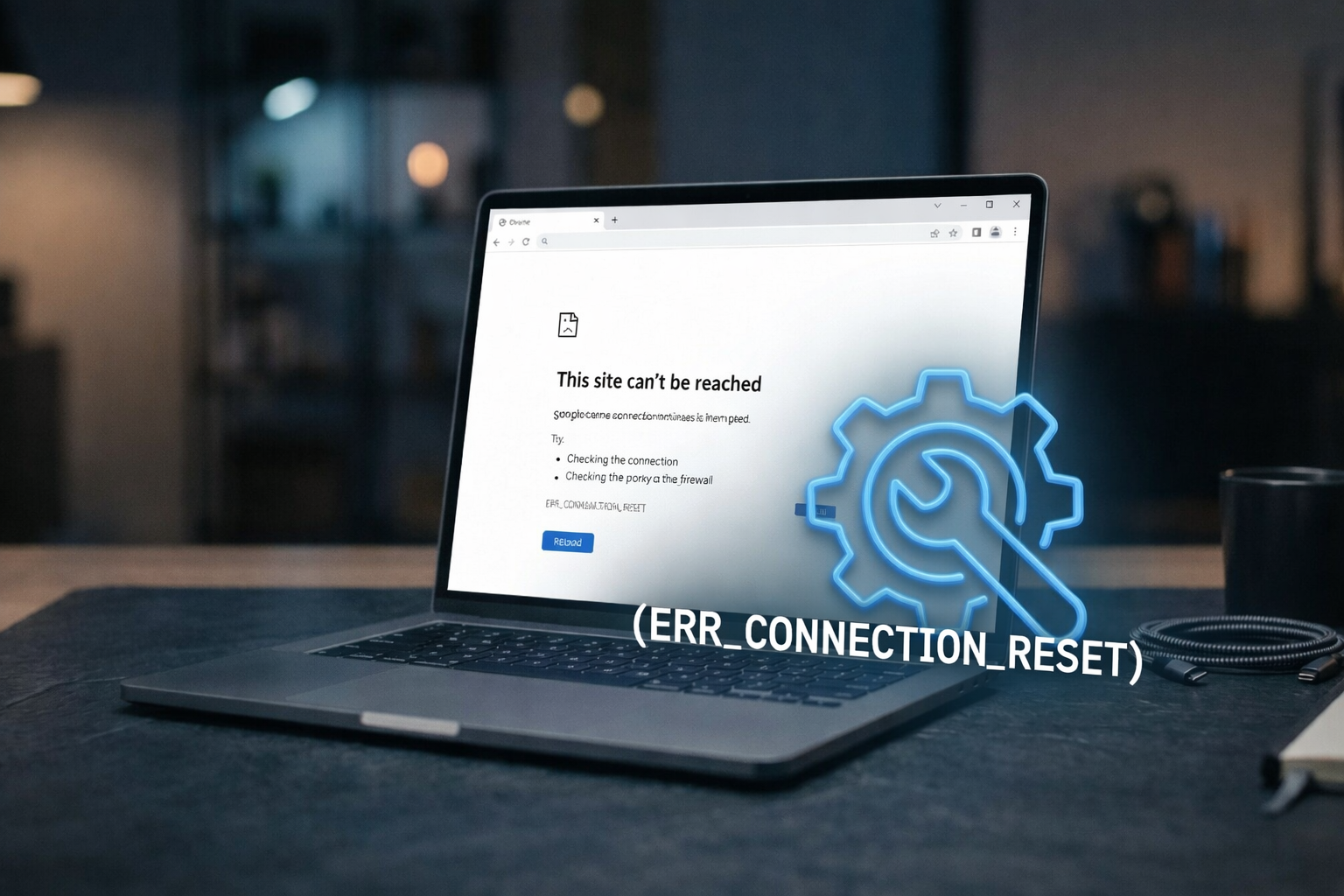
The error err_connection_reset often appears when your browser fails to connect to a website. It means the connection resets abruptly. You try to visit a page, but the server closes the link. You then see this error. This article explains what triggers it, how to fix it, and how to prevent it.
What is err_connection_reset?
The term err_connection_reset refers to the situation when a network connection gets dropped before completing the request.
- You type a web address.
- The browser sends a request.
- The server sees the request.
- The server cuts the connection too soon.
- The browser shows err_connection_reset.
This error can appear on Chrome, Edge, Firefox, and other browsers. The message might vary slightly, such as “The connection was reset,” “Connection reset by peer,” or simply “err_connection_reset.” But the root cause remains the same—a sudden network breakdown.
Why err_connection_reset happens
This error can stem from many sources. Here are common causes:
- Network glitches
A weak Wi‑Fi signal or a bad Ethernet cable can drop your connection abruptly. - Antivirus or firewall interference
Security tools sometimes block traffic they misread as unsafe, causing a reset. - Browser settings
Misconfigured proxy settings or dirty cache can interrupt communication. - Router or modem faults
Overheated routers or outdated firmware can stop connections in mid‑stream. - Server‑side issues
If a server has problems, it might close incoming requests before handling them. - ISP or local network issues
Your internet provider or local network might disrupt traffic flow. - VPN or proxy interruptions
A faulty VPN or proxy can drop packets and reset sessions.
How to fix err_connection_reset
Follow these steps to troubleshoot and fix the error. Lower-tech steps come first.
1. Reload the page
You may have hit a momentary glitch. Press “Reload” or F5 to try again. A short drop can pass quickly.
2. Restart your browser
Close the browser fully. Wait five seconds. Open it again and reload the page.
3. Clear browser cache and cookies
Old data can block new connections. In Chrome:
- Click the three dots (⋮).
- Go to More tools → Clear browsing data.
- Check Cached images and files and Cookies.
- Click Clear data.
Then retry the page.
4. Disable and re‑enable your antivirus or firewall
Temporarily turn off security tools and reload. If the site works, add it to your tool’s whitelist. Then turn the protection back on.
5. Reset your network devices
Unplug your router and modem. Wait 30 seconds. Plug them back in. The devices reboot and clear any temporary misbehavior.
6. Check your proxy and VPN
If you use a proxy or VPN, turn it off temporarily. Reload the site. If it works, change your settings or try another VPN provider.
7. Change DNS servers
Some DNS servers misbehave. Switch to Google DNS or Cloudflare:
- Google DNS:
8.8.8.8and8.8.4.4 - Cloudflare DNS:
1.1.1.1and1.0.0.1
Update these in your network adapter settings and restart.
8. Flush your DNS and reset your network stack (Windows)
Open Command Prompt as admin and run:
ipconfig /flushdns
netsh int ip reset
netsh winsock reset
Reboot your PC and test again.
9. Update your router firmware
Log into your router’s admin panel. Find the firmware section. If an update exists, apply it. Then restart the router.
10. Contact your ISP or website administrator
If nothing works, the issue may lie with the ISP or the site’s server. Reach out and ask if they see connection drops.
How to prevent err_connection_reset
You can lower the risk of seeing this error again. Here are prevention tips:
• Use a stable connection – Wired connections work best. If you rely on Wi‑Fi, sit closer to the router or upgrade coverage.
• Keep security tools updated – Use trusted antivirus and firewall software. Keep them current and white‑list regularly needed sites.
• Maintain your browser – Remove old extensions, clear cache weekly, and update the browser often.
• Update networking gear firmware – Routers and modems get updates that improve stability and security.
• Choose reliable DNS – Use fast and trustworthy DNS services to avoid lookup failures.
• Monitor your VPN or proxy – Stick with well‑supported services. Watch their changelogs and server health stats.
• Watch for overheating – Keep your router and modem in a cool spot. Overheating can cause network resets.
• Check site status – Use site status tools or social media to see if the issue lies with the server.
Real‑world scenario: err_connection_reset on Chrome
Let’s walk through a typical situation:
- You try to load
https://example.com. - Chrome returns err_connection_reset.
- You press Reload. It fails again.
- You clear cache and cookies and try again. Still no luck.
- You disable your antivirus briefly. Reload works! The site loads.
- You open antivirus settings and whitelist the site. Then you re‑enable protection.
- The site works consistently now.
This scenario shows how small steps eliminate issues one layer at a time.
Quick checklist: err_connection_reset troubleshooting
| Step | Action |
|---|---|
| 1. | Reload the page |
| 2. | Restart browser |
| 3. | Clear cache & cookies |
| 4. | Disable antivirus/firewall temporarily |
| 5. | Restart router/modem |
| 6. | Turn off VPN/proxy |
| 7. | Change DNS servers |
| 8. | Run DNS flush & network reset |
| 9. | Update router firmware |
| 10. | Contact ISP or site admin |
Summary
err_connection_reset occurs when your browser loses a connection unexpectedly. It can stem from network hardware, browser settings, antivirus, router faults, DNS, VPNs, or server problems. You solve it by reloading, clearing cache, disabling security tools, restarting gear, changing DNS, resetting network settings, updating firmware, or contacting relevant parties.
Use a reliable setup, keep tools and devices updated, and monitor health to prevent future disruptions.
By following the steps above, you resolve err_connection_reset quickly. You also boost your network’s stability. Keep your connection smooth, your browsing fast, and your browsing clear of frustrating resets.
Final words
Fixing err_connection_reset does not need to feel complex. You work through a clear path: test simple fixes, escalate to more technical steps, and seek help if needed. Every action brings you closer to a stable, working web experience.
