


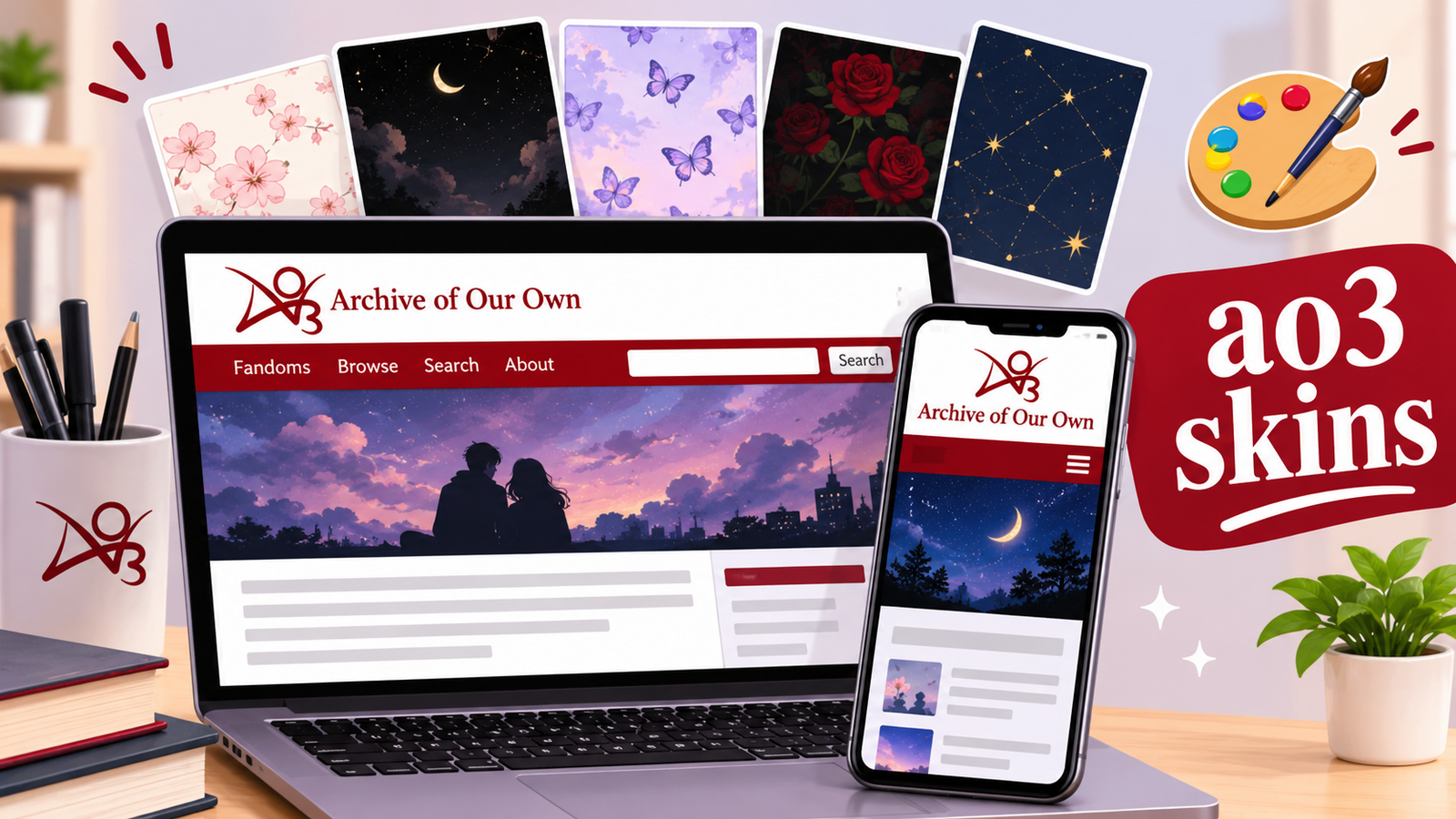
Reading fanfiction online brings endless joy, but default website designs are not always comfortable for your eyes. Bright white backgrounds can hurt your eyes during late-night reading sessions. Small fonts can strain your vision over long reading marathons.
Fortunately, Archive of Our Own (AO3) offers a powerful solution. You can easily change the layout, colors, and typography using AO3 skins.
Whether you want a sleek dark theme, a cozy retro aesthetic, or custom text formatting for your fanfic, ao3 skins let you take control of your reading interface. In this complete guide, you will learn what AO3 skins are, how they work, how to install them, and how to create your own custom designs from scratch.
What Are AO3 Skins?
An AO3 skin is a custom Cascading Style Sheet (CSS) that modifies the visual presentation of Archive of Our Own. When you apply a skin, you change how elements look without altering the underlying content of the stories.
The platform splits customization into two main categories:
- Site Skins: These styles change how the entire AO3 website looks for your account. They modify site-wide colors, background shades, font styles, navigation menus, button styles, and margins. Only you see your chosen site skin when logged in.
- Work Skins: These styles belong to individual works or stories. Authors use them to format specific text elements within a fic. You can create custom text message logs, skin phone screens, format epistolary emails, or adjust paragraph alignment. Every reader who views that specific fic sees the author’s work skin.
Why You Should Use AO3 Skins
Customizing your interface goes far beyond simple aesthetics. Custom styling provides real physical comfort and practical accessibility features for avid readers.
Here are the biggest benefits of using custom ao3 skins:
- Reduces Eye Strain: Dark mode themes and muted color palettes help prevent headaches during late-night reading.
- Improves Accessibility: You can increase font size, alter line heights, and switch to reader-friendly typefaces such as OpenDyslexic.
- Cleans Up Distractions: You can use CSS rules to hide specific tags, cover images, site banners, or comment sections.
- Enhances Storytelling: Authors can turn plain text into immersive visual media, including realistic chat conversations and journal entries.
- Custom Mobile Layouts: Responsive code lets you optimize margins so stories fit perfectly on phone screens without awkward side scrolling.
How to Find Pre-Made AO3 Skins
You do not need coding skills to use ao3 skins. Thousands of fans share their pre-made styles online for free.
You can discover amazing designs across several online communities:
- Public AO3 Skins: Log into AO3, go to your Dashboard, click “Skins,” and browse the “Public Site Skins” tab. Options like Reversi provide an instant dark mode.
- Tumblr: Search tags like #ao3 skin, #ao3 custom css, or #ao3 site skin to find aesthetic themes created by fan developers.
- GitHub Repositories: Coding communities host clean, well-tested stylesheets with instructions for both desktop and mobile users.
- Reddit: Communities like r/FanFiction frequently share accessibility-focused stylesheets and custom layout codes.
- Dreamwidth: The dedicated ao3_skins community stores historical and modern code templates for complex site modifications.
How to Install a Public or Custom Site Skin
Applying a public skin takes less than two minutes. Follow these quick steps to change your interface immediately:
- Log into your Archive of Our Own account.
- Click your account name at the top right corner and select Dashboard.
- Click the Skins link in the left sidebar menu.
- Choose Public Site Skins to browse built-in options.
- Click the Use button next to your chosen design to activate it instantly.
If you found custom CSS code on Tumblr or GitHub, install it using these simple steps:
- Copy the entire CSS code block from your source.
- Go to your AO3 Dashboard and navigate to the Skins tab.
- Click the Create Site Skin button.
- Enter a unique title for your skin in the Title field.
- Paste your copied code straight into the CSS text box.
- Scroll down to the bottom and click the Submit button.
- Click Use on the summary page to apply your new look across the entire website.
How to Use the Built-in AO3 Site Skin Wizard
If you want a quick color swap without writing CSS code, use AO3’s Site Skin Wizard. This tool creates a personal style automatically based on your color preferences.
Follow these steps to build your style:
- Go to Dashboard > Skins.
- Click Use Wizard.
- Type a unique name for your custom theme.
- Pick your preferred primary background color, text color, and header colors using simple hex codes or color names.
- Select your preferred font family and default font size.
- Choose your preferred reading margin percentage to narrow wide paragraphs.
- Click Submit and tap Use to apply your custom design.
How Writers Use Work Skins for Rich Story Formatting
Work skins give authors creative control over story presentation. Instead of reading plain text blocks, readers experience interactive visuals embedded in the fic.
Here are popular ways writers use work skins:
- Text Messages and Chat Logs: Create authentic iOS or Android speech bubbles for characters messaging each other.
- Social Media Pages: Build mock Twitter feeds, Tumblr dashboards, or Instagram posts right inside your chapter.
- System Alerts: Format game notifications, RPG status menus, or sci-fi terminal commands.
- Handwritten Notes: Display journal pages with stylized script fonts and aged background boxes.
How to Create and Attach a Work Skin:
- Go to your Dashboard, select Skins, and click Work Skins.
- Click Create Work Skin, enter a title, and paste your CSS rules.
- Save the skin.
- Open the story edit page for your fanfiction.
- Scroll down to the Associations section.
- Check the box labeled Select Work Skin and pick your skin from the dropdown menu.
- Wrap your HTML tags inside your story editor using the matching CSS classes from your skin.
Essential CSS Snippets for Custom AO3 Skins
If you want to write your own custom code, small tweaks make a massive difference. You can paste these code snippets into a new Site Skin to quickly modify your interface.
1. Increase Reading Font Size and Line Spacing
Default fonts can feel too tiny on large desktop screens. Use this code snippet to expand text size:
CSS
#workskin {
font-size: 1.25rem;
line-height: 1.75;
font-family: ‘Georgia’, serif;
2. Create Comfortable Side Margins
Extremely wide text blocks make long reading difficult. Centering your content creates a book-like feel:
CSS
#workskin .userstuff {
max-width: 45rem;
margin-left: auto;
margin-right: auto;
3. Hide Unwanted Tags or Content Warnings
If you prefer clean search results without visual clutter, hide specific elements using simple display rules:
CSS
/* Hides freeform tags on search pages */
.blurb .tags .freeforms {
display: none;
Accessibility and Mobile Optimization
Not all screens display websites identically. Reading fanfiction on a desktop monitor feels very different from reading on an iPhone or Android phone.
To make your custom site skins work smoothly on mobile screens, use parent-child skin relationships:
- Media Queries: Set your media parameters to target handheld devices specifically (only screen and (max-width: 42em)).
- Parent Skins: Create a desktop skin first, then create a mobile add-on skin that sets the desktop skin as its parent. AO3 will merge both stylesheets automatically so your site looks clean everywhere.
Frequently Asked Questions About AO3 Skins
Will other readers see my Site Skin?
No. Site skins affect your personal viewing experience while you are logged into your account. Other users will see their own chosen settings.
Can readers hide Work Skins if they dislike the formatting?
Yes! Readers can click the Hide Skins button at the top of any fic to view the text in standard default styling.
Why does my custom skin stop working when I log out?
Custom site skins belong to logged-in user profiles. Guest readers always see the default white-and-red AO3 design.
Are AO3 skins safe to use?
Yes, completely. AO3 strips out harmful Javascript code automatically. You can only use safe CSS code for visual styling.
Transforming Your Reading Experience Today
The Archive of Our Own community built a flexible, powerful platform for readers and writers alike. Taking advantage of ao3 skins helps you create a clean, eye-friendly environment tailored to your exact visual preferences.
Try experimenting with built-in public skins today or build your own custom CSS stylesheet. You will transform how you browse, read, and write fanfiction forever!
