


Managing files, notifications, and apps across mobile and desktop devices often disrupts focus. Switching back and forth between a phone screen and a computer display wastes time and fragments concentration. AirDroid Web resolves this friction by enabling seamless access to an Android device directly through any desktop web browser, eliminating the need to install desktop software or connect physical cables.
What Is AirDroid Web?
AirDroid Web is a browser-based management tool that bridges the gap between mobile operating systems and desktop platforms like Windows, macOS, Linux, and ChromeOS. By establishing a secure connection over a local Wi-Fi network or cellular data, users can mirror screens, transfer files, respond to text messages, and manage device storage without touching the phone physically.
Because it operates entirely within a web browser, AirDroid Web requires no desktop client installation, making it ideal for workstations with restricted admin privileges or temporary computers.
Key Benefits of Using the Web Interface
Using a web-based management interface streamlines daily tasks and boosts productivity:
- No Desktop Software Required: Access your device instantly from any browser, including Chrome, Safari, Firefox, and Edge.
- Cross-Platform Compatibility: Works on Windows, Mac, Linux, and Chromebooks.
- Cable-Free File Transfers: Move photos, videos, documents, and APK files wirelessly.
- Centralized Notifications: View incoming phone calls, SMS messages, and app alerts directly on your computer monitor.
- Full Keyboard and Mouse Control: Reply to messages faster using a physical computer keyboard.
Prerequisites Before Connecting
Before launching a web session, ensure the following requirements are met for a smooth connection:
| Requirement | Details |
| Mobile App | AirDroid app installed on the target Android device from the Google Play Store |
| Network Connection | Both phone and computer connected to the same Wi-Fi network (for local connection) |
| User Account | An active account (optional for local IP connections, required for remote management) |
| Web Browser | Updated version of Chrome, Firefox, Safari, Edge, or Opera |
Step-by-Step Connection Methods
There are two primary ways to access a phone using a web browser: Local Connection Mode (faster transfers, same Wi-Fi) and Remote Connection Mode (access from anywhere via web servers).
   [ Mobile Device ]
          │
  ┌───────┴───────┐
  │               │
  ▼               ▼
Local IP      Web Portal
(Same Wi-Fi)  (Remote/Any Network)
  │               │
  └───────┬───────┘
          ▼
   [ Web Browser ]
Method 1: Local Connection Mode (Same Wi-Fi Network)
This method provides the fastest transfer speeds because data moves directly across the local wireless network without travelling over the internet.
- Open the Mobile App: Launch AirDroid on the mobile phone.
- Locate the Local Address: Tap on AirDroid Web under the connection options. Look for the numerical IP address (e.g.,
[http://192.168.1.50:8888](http://192.168.1.50:8888)). - Enter IP in Browser: Open a web browser on the computer, type the exact IP address into the URL bar, and press Enter.
- Confirm Connection: A prompt will appear on the phone display. Tap Accept to establish the wireless link.
Method 2: Web Portal Connection (Account-Based)
This method allows access even when the computer and mobile device are connected to different networks or cellular data.
- Sign In on Mobile: Open the mobile app and sign in with registered account credentials.
- Navigate to Web Portal: On the computer, visit the official web access address (
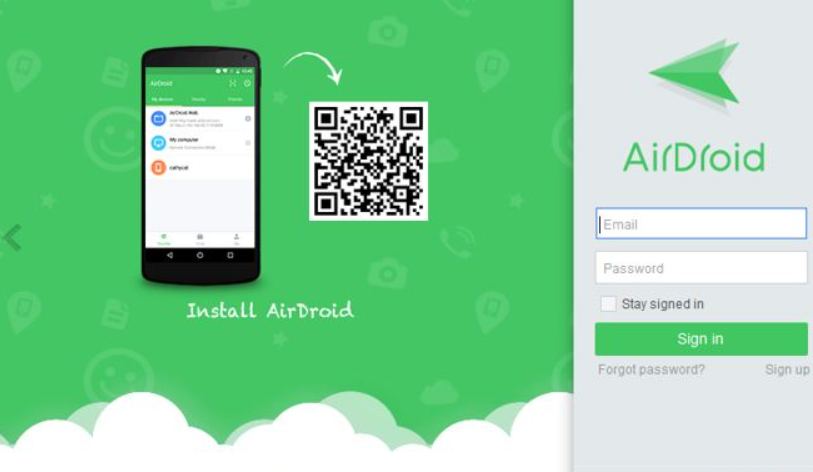
web.airdroid.com). - Sign In on Desktop: Enter the same login details or scan the displayed QR code using the scanner inside the mobile app.
- Access Dashboard: Once authenticated, the web dashboard populates with device status, storage details, and application icons.
Core Features and Functions
┌──────────────────────────────────────────────────────────┐
│                   AirDroid Web Dashboard                 │
├──────────────┬──────────────┬──────────────┬─────────────┤
│  📁 Files    │  💬 Messages │  📷 Photos   │  📲 Mirror  │
├──────────────┼──────────────┼──────────────┼─────────────┤
│  🎵 Music    │  📋 Contacts │  🗂️ Apps     │  📋 Clipboard│
└──────────────┴──────────────┴──────────────┴─────────────┘
1. File Transfer and Storage Management
Transfer documents, media, and installation packages between devices using intuitive drag-and-drop actions. Files can be downloaded individually or as compressed archive folders.
2. SMS and Notification Syncing
Send and receive text messages directly from the desktop. Incoming mobile alerts display in the corner of the desktop screen, ensuring important communications are never missed during work hours.
3. Screen Mirroring (AirMirror)
View the live mobile screen directly inside the web browser. This feature helps present mobile applications, demonstrate workflows, or view mobile media on a larger monitor.
4. Remote Camera Access
Activate the front or rear camera of the mobile device remotely. The live feed streams straight to the web browser, effectively turning an unused phone into a desk monitor or security camera.
5. Application Management
Browse installed applications, export APK files for backup, or install new applications directly from the desktop computer by dragging APK files into the browser interface.
Security Best Practices
Connecting mobile devices to desktop browsers requires robust security habits to protect personal data:
- Use Local Connections for Sensitive Data: Local IP transfers bypass external servers, ensuring files remain entirely within the local network.
- Sign Out After Public Sessions: Always click Sign Out when using shared, public, or workplace computers.
- Enable Connection Permission Prompts: Keep connection confirmations mandatory on the phone to prevent unauthorized access attempts.
- Use Strong Account Passwords: Secure account credentials with complex passwords and change them periodically.
Troubleshooting Common Connection Issues
| Issue | Potential Cause | Solution |
| IP Address Won’t Load | Devices on different networks | Ensure both devices connect to the exact same Wi-Fi SSID |
| Connection Timeout | Battery saver closing app | Disable battery optimization for the mobile app |
| QR Code Scan Fails | Poor lighting or screen glare | Adjust screen brightness or use manual account login |
| Slow Transfer Speeds | Router congestion or remote server | Switch from Web Portal mode to Local IP mode |
Frequently Asked Questions
Does the phone need to be rooted to use web features?
No, basic file transfer, messaging, photo browsing, and remote management features function without root access. Advanced control options may require basic permissions configured via USB once.
Can transfers work without an active internet connection?
Yes, as long as both the computer and mobile device connect to the same local Wi-Fi router, the local IP connection method functions without active internet connectivity.
By leveraging browser-based device management, handling files, messages, and applications across platforms becomes effortless, creating an efficient and unified digital workspace.
